AI employees become useful when they can work where the business already happens.
They become dangerous when “connect the tool” quietly means “give every role every action.”
Yodu separates the connection from the employee switch so a company can add capability without surrendering control.
Quick answer
Connect a business app once at the workspace level, then leave it switched on only for the AI employee that needs it. Access is one switch per employee: on means the employee sees and uses the tool, off means it is hidden entirely. Sending, publishing, spending, and destructive actions pause at the approval gate for a human decision. Test one known task before widening anything. A large integration catalog is useful only when access stays narrow.
Start with the job, not the catalog
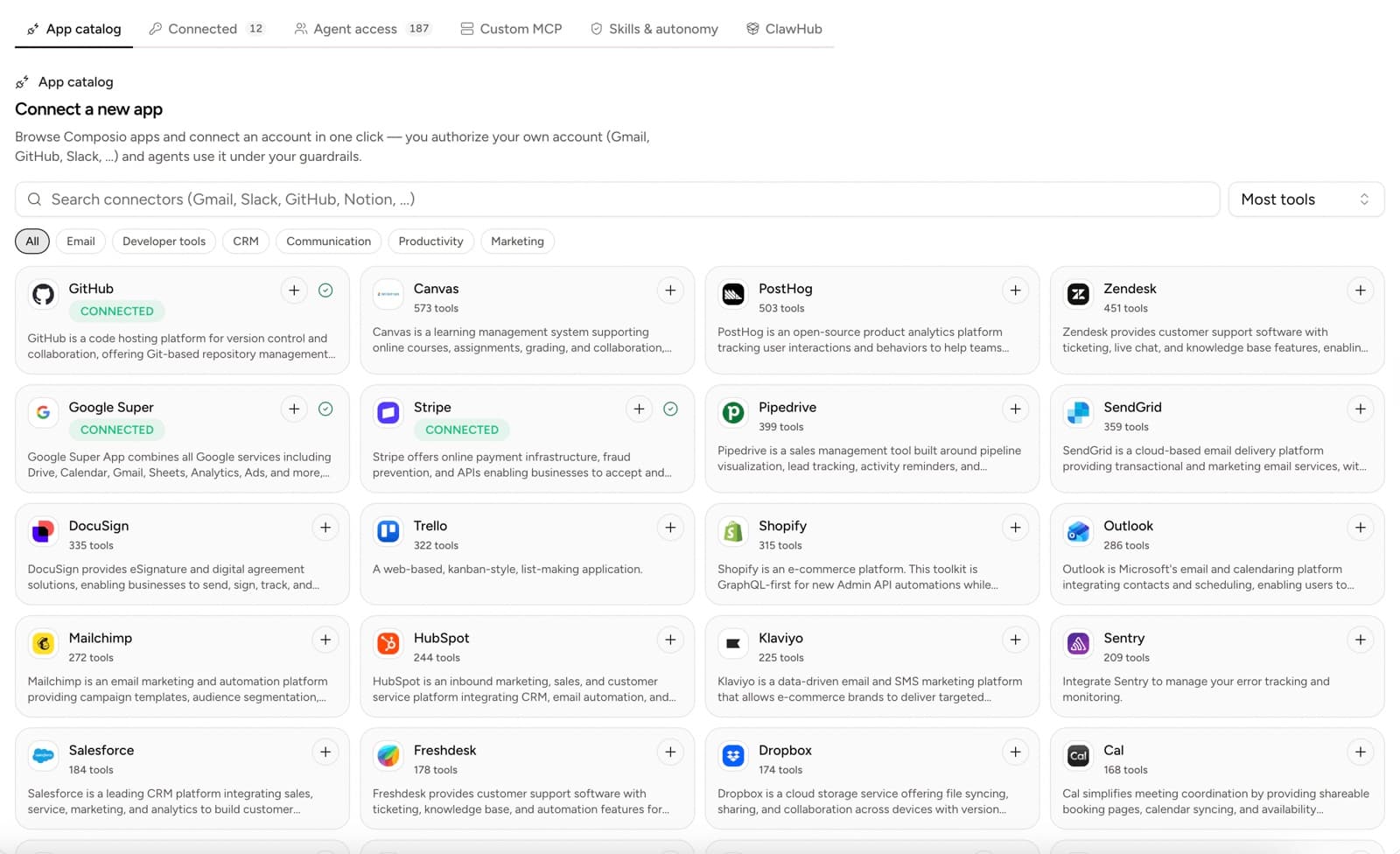
Composio's public catalog lists more than 1,000 app integrations, including Gmail, Slack, GitHub, Notion, and Google Calendar. The number is useful, but it is not the goal.
The goal is one employee completing one job.
Before connecting anything, write:
- the employee
- the first task
- the account required
- the minimum useful action
- the human reviewer
For example:
Sales operator will read the founder's demo follow-up thread and prepare a reply. It may not send the email.
That brief tells you to connect Gmail, switch it on for the sales operator only, and let the approval gate hold the send.
The four-layer model
| Layer | Question |
| ----------------- | --------------------------------------------------------- |
| App toolkit | What actions does the provider expose? |
| Connected account | Which company account is authorized? |
| Employee switch | Which AI employee can see and use that account? |
| Approval gate | Which actions pause for a human decision before they run? |
Do not collapse these layers into one “connected” badge.
Connect the account
Open Tool access → App catalog. Search by provider or filter by category.
Select the add control and complete the provider's authorization flow. Then open Connected and confirm the intended account appears.
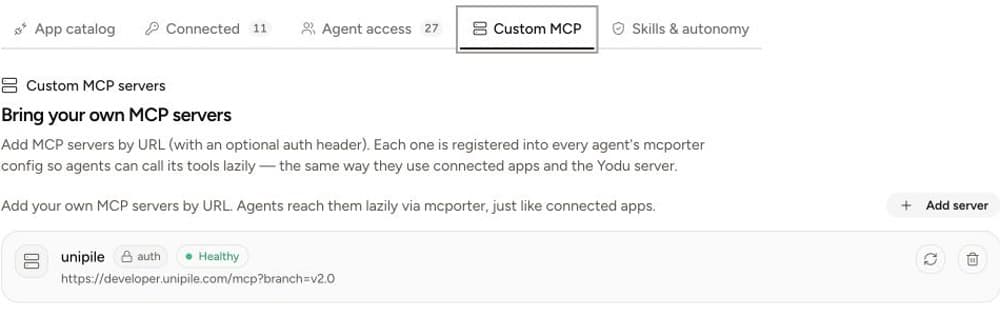
For Vercel, the onboarding update offers browser sign-in through Vercel's official MCP server. The authorization screen may request broad permissions, so review its teams, projects and actions before allowing access. An existing project can use a project-scoped MCP session; that does not narrow every permission displayed in OAuth consent. The connection is verified under Custom MCP, where you can re-authenticate or re-test it. This change is currently unreleased; deployments still showing the credential form use the access-token method.
If the company uses multiple accounts, label them by purpose:
- Founder Gmail
- Support inbox
- Sales GitHub
- Production Stripe
“Gmail connected” is not enough when the wrong inbox would expose customer or personal data.
Switch the tool on for the right employee
Every connected app appears on each employee as a single switch, on by default. Open the employee's Skills & tools panel and switch the app off for every employee that does not need it.
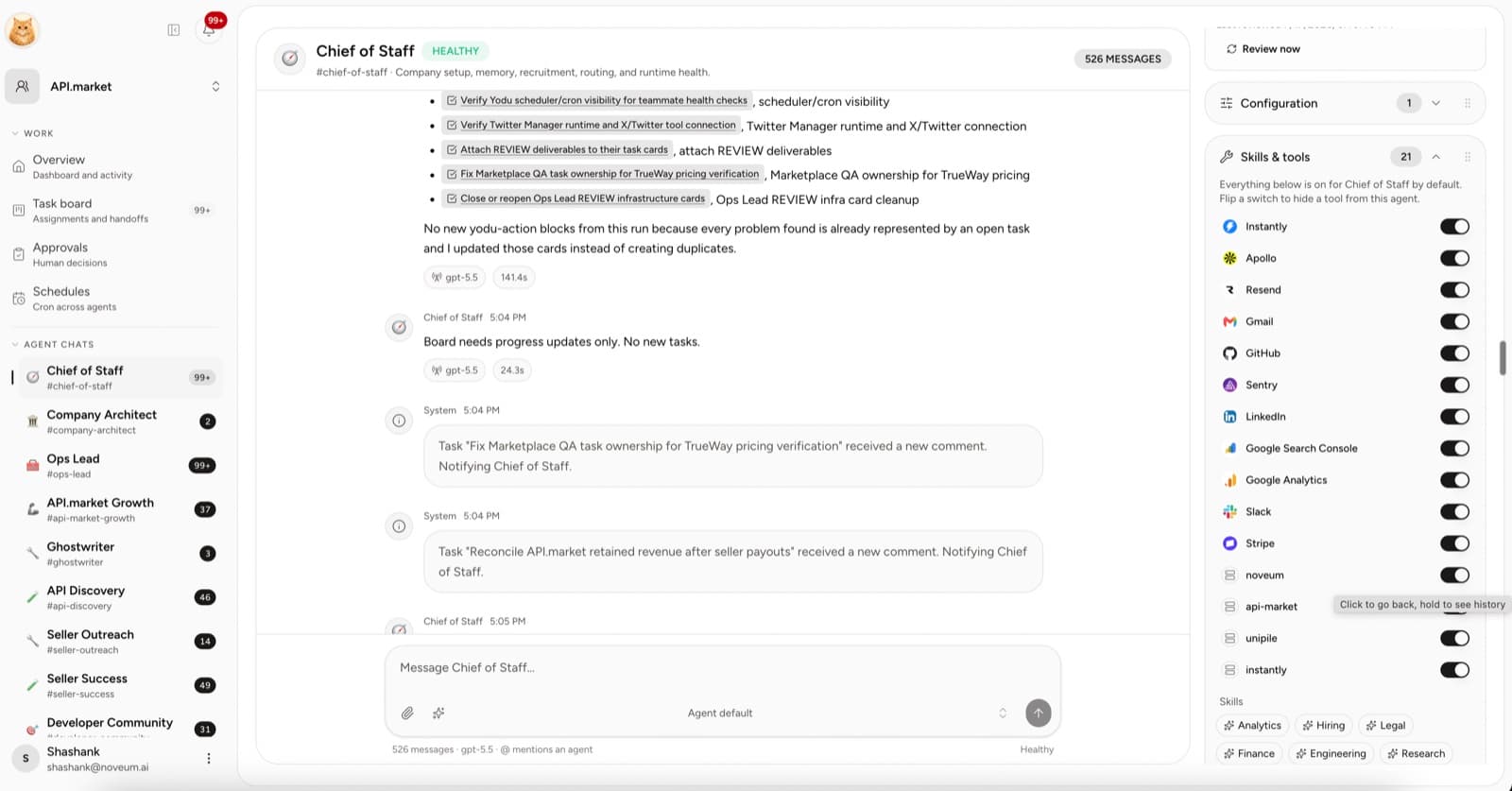
The switch is binary and honest:
- On: the employee sees the tool and can use it
- Off: the tool is hidden from the employee entirely
There is no per-tool autonomy mode to tune. Safety lives in the approval gate: anything external or irreversible, such as sending, posting, spending, or deleting, pauses for a human decision. You decide inline in chat or from the Approvals queue, with Allow once, This session, or Deny.
A practical starting matrix
| Employee | First app | The gate will hold | First test |
| -------------------- | ----------------- | --------------------------- | ------------------------------------ |
| Research analyst | CRM or files | Nothing, the work reads | Build a sourced account brief |
| Sales operator | Gmail | Email sends | Draft a follow-up to one test thread |
| Support lead | Inbox or helpdesk | Outbound replies | Triage and draft one reply |
| Content strategist | Docs or CMS | Publishing | Create a draft, not a published page |
| Finance operator | Stripe | Refunds and billing changes | Read one subscription record |
| Engineering operator | GitHub | Repository writes | Summarize one issue or PR |
Important integrations by job
Gmail and Outlook
Use for inbox context, triage, and drafts. Every send pauses at the approval gate; use Allow once until the workflow is repeatedly correct.
Google Calendar
Use for meeting context and follow-up preparation. Start by reading schedules rather than modifying calendars.
HubSpot and other CRMs
Use for account context, deal notes, and draft updates. Separate read access from changes to lifecycle stages or source-of-truth fields.
Fireflies
Use transcripts and summaries as task inputs. Review what customer data is available before granting it broadly.
Apollo and Instantly
Use for research, enrichment, and outbound preparation. Keep paid enrichment, campaign changes, and external sends under review.
GitHub
Use for issue, pull request, and repository context. Keep branch protection, required checks, and human merge control in GitHub.
Stripe
Use read access for customer and subscription context. Refunds, cancellations, and billing changes pause at the approval gate.
Do not put secrets in prompts
Provider authorization belongs in the connected account flow. API keys belong in the relevant settings screen. An employee should receive a grant, not a raw credential pasted into chat or memory.
This follows a broader security principle: authorization should be scoped to the user and operation. OWASP's guidance for securing agentic applications treats excessive agency and weak tool boundaries as practical risks, not theoretical edge cases.
Test the control, not just the output
The first test should verify both usefulness and policy.
Check:
- Did the employee use the intended account?
- Did it use the supplied task and context?
- Did the external action pause at the approval gate?
- Are switched-off tools actually invisible to the employee?
- Is the result visible and reviewable?
- Can the tool be switched off immediately?
Measure connection quality
Track these manually during the beta:
| Metric | What it reveals |
| ----------------------- | ---------------------------------------------------------- |
| Successful scoped tests | Whether the connection works for the intended job |
| Approval rate | Whether requested external actions are usually appropriate |
| Wrong-account incidents | Whether account labels and grants are clear |
| Reconnect frequency | Whether authorization is stable |
| Unused enabled tools | Whether access is broader than the work needs |
| Time blocked on access | Whether the employee was hired before its tools were ready |
The best tool setup is not the largest. It is the smallest set of well-labeled accounts and explicit grants that lets the team finish useful work.
Make the first connection
Use the Composio connection guide, review the MCP server security checklist, then open MCP servers and AI tool integrations when the capability belongs to a private system rather than a catalog app.
Personal browser sessions
Open an employee's chat to use its browser in the right-side pane. The address bar and Take over or Hand back control stay visible. Use the gear menu to close or reopen the browser, import cookies, or delete your saved profile. Other workspace members cannot inspect your profile or saved login state.
Choose Take over to navigate and sign in personally. While you have control, the employee cannot act on or observe the browser. Choose Hand back when sign-in is complete; Yodu saves the session state encrypted at rest so the employee can reuse the login.
Give the employee its task in the chat. Compact browser tools operate in the normal employee turn, and the pane streams the actual browser live. Supervised website mutations require approval. Autonomous employees can act within their configured policy. Use Take over whenever you need to intervene, including website dialogs or account verification.
Cookie import is optional and available while the browser is closed. Import only domains you need; this is a snapshot, and device-bound or expired sessions can require a fresh sign-in. The browser does not maintain private job history or save viewer frames as captures. Close it when finished, or delete the profile to remove its saved login state.